Giao diện tối
2.8 — Programs with multiple code files
🎯 Mục Tiêu Bài Học
- Nắm vững bản chất lý thuyết và cơ chế hoạt động của Programs with multiple code files trong tiêu chuẩn ISO C++.
- Hiểu rõ cách máy tính tổ chức bộ nhớ (RAM, CPU registers) khi thực thi mã nguồn liên quan.
- Nhận biết các cạm bẫy lỗi kinh điển (Undefined Behavior, Memory Leak, Bug logic) và cách phòng tránh.
- Áp dụng các quy tắc thực hành tốt nhất (Best Practices) chuẩn công nghiệp và cập nhật C++20/C++23 hiện đại.
2.8 — Programs with multiple code files
Adding files to your project
As programs get larger, it is common to split them into multiple files for organizational or reusability purposes. One advantage of working with an IDE is that they make working with multiple files much easier. You already know how to create and compile single-file projects. Adding new files to existing projects is very easy.
Thực hành tốt nhất (Best Practice)
When you add new code files to your project, give them a .cpp extension.
::: cảnh báo For Visual Studio users
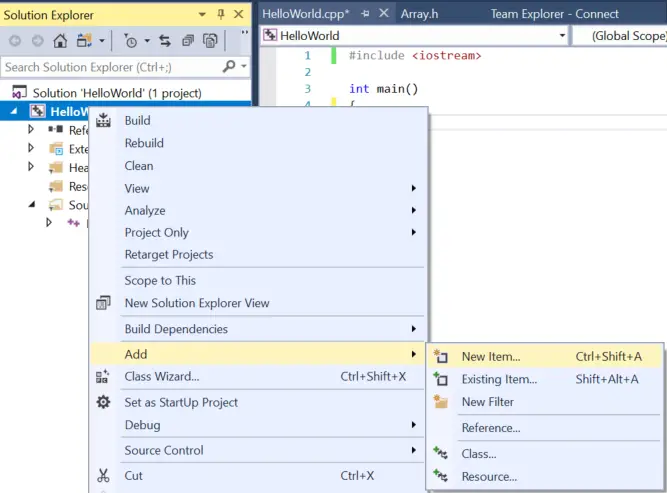
In Visual Studio, right click on the Source Files folder (or the project name) in the Solution Explorer window, and choose Add > New Item….
 :::
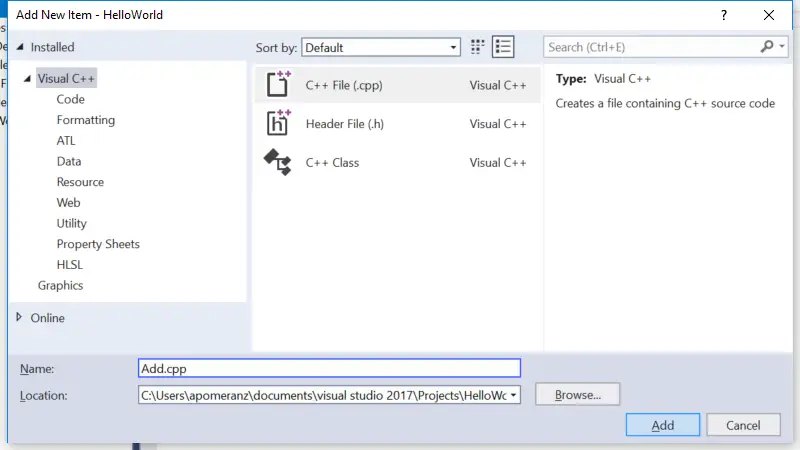
Make sure you have C++ File (.cpp) selected. Give the new file a name, and it will be added to your project.
Note: Your Visual Studio may opt to show you a compact view instead of the full view shown above. You can either use the compact view, or click “Show all Templates” to get to the full view.
Note: If you create a new file from the File menu instead of from your project in the Solution Explorer, the new file won’t be added to your project automatically. You’ll have to add it to the project manually. To do so, right click on Source Files in the Solution Explorer, choose Add > Existing Item, and then select your file.
Now when you compile your program, you should see the trình biên dịch list the name of your file as it compiles it.
::: cảnh báo For Code::Blocks users
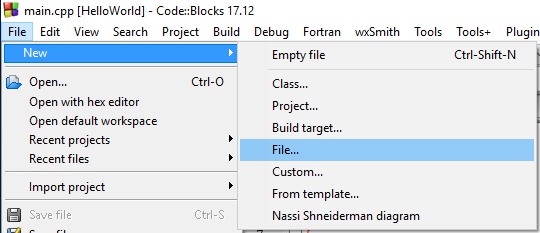
In Code::Blocks, go to the File menu and choose New > File….
 :::
In the New from template dialog, select C/C++ source and click Go.
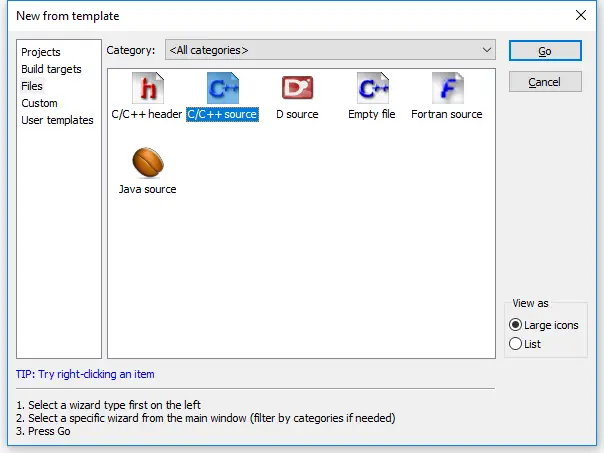
You may or may not see a welcome to the C/C++ source file wizard dialog at this point. If you do, click Next.
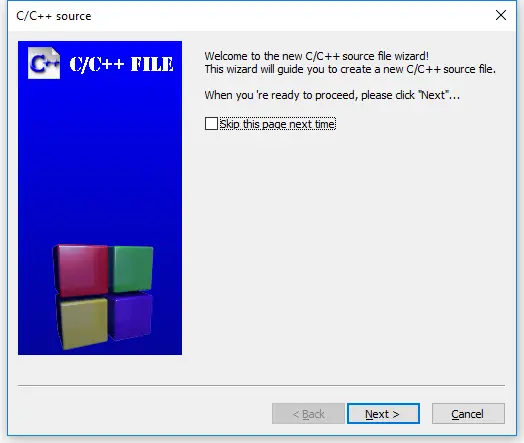
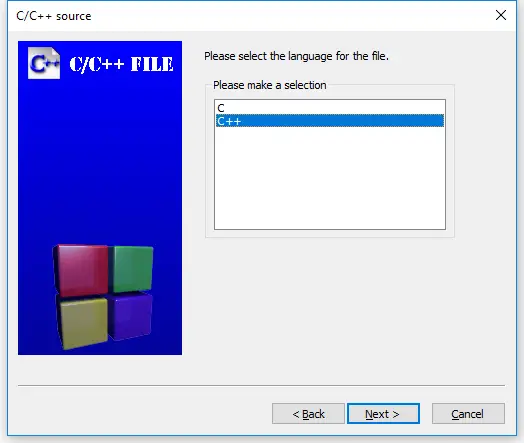
On the next page of the wizard, select “C++” and click Next.
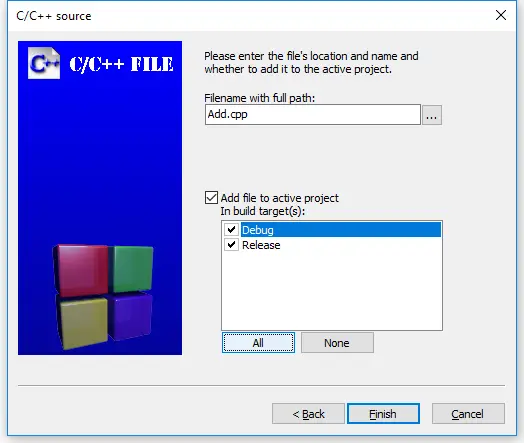
Now give the new file a name (don’t forget the .cpp extension), and click the All button to ensure all build targets are selected. Finally, select finish.
Now when you compile your program, you should see the trình biên dịch list the name of your file as it compiles it.
::: cảnh báo For gcc users
From the command line, you can create the additional file yourself, using your favorite editor, and give it a name. When you compile your program, you’ll need to include all of the relevant code files on the compile line. For example: g++ main.cpp add.cpp -o main, where main.cpp and add.cpp are the names of your code files, and main is the name of the output file. :::
::: cảnh báo For VS Code users
To create a new file, choose View > Explorer from the top nav to open the Explorer pane, and then click the New File icon to the right of the project name. Alternately, choose File > New File from the top nav. Then give your new file a name (don’t forget the .cpp extension). If the file appears inside the .vscode folder, drag it up one level to the project folder.
Next open the tasks.json file, and find the line "${file}",.
You have two options here:
- If you wish to be explicit about what files get compiled, replace
"${file}",with the name of each file you wish to compile, one per line, like this:
"main.cpp",
"add.cpp",
Reader “geo” reports that you can have VS Code automatically compile all .cpp files in the directory by replacing
"${file}",with"${fileDirname}\\**.cpp"(on Windows).Reader “Orb” reports that
"${fileDirname}/**.cpp"works on Unix.
:::
A multi-file example
Trong bài học 2.7 -- Forward declarations and definitions, we took a look at a single-file program that wouldn’t compile:
cpp
#include <iostream>

int main()
{
    std::cout << "The sum of 3 and 4 is: " << add(3, 4) << '\n';
    return 0;
}

int add(int x, int y)
{
    return x + y;
}
When the trình biên dịch reaches the hàm call to add on line 5 of main, it doesn’t know what add is, because we haven’t defined add until line 9! Our solution to this was to either reorder the các hàm (placing add first) or use a forward declaration for add.
Now let’s take a look at a similar multi-file program:
add.cpp:
cpp
int add(int x, int y)
{
    return x + y;
}
main.cpp:
cpp
#include <iostream>

int main()
{
    std::cout << "The sum of 3 and 4 is: " << add(3, 4) << '\n'; // compile error
    return 0;
}
Your trình biên dịch may compile either add.cpp or main.cpp first. Either way, main.cpp will fail to compile, giving the same trình biên dịch error as the previous example:
cpp
main.cpp(5) : error C3861: 'add': identifier not foundThe reason is exactly the same as well: when the trình biên dịch reaches line 5 of main.cpp, it doesn’t know what identifier add is.
Remember, the trình biên dịch compiles each file individually. It does not know about the contents of other code files, or remember anything it has seen from previously compiled code files. So even though the trình biên dịch may have seen the definition of hàm add previously (if it compiled add.cpp first), it doesn’t remember.
This limited visibility and short memory is intentional, for a few reasons:
It allows the source files of a project to be compiled in any order.
When we change a source file, only that source file needs to be recompiled.
It reduces the possibility of naming conflicts between identifiers in different files.
We’ll explore what happens when names do conflict in the next lesson (2.9 -- Naming collisions and an introduction to namespaces).
Our options for a solution here are the same as before: place the definition of hàm add before hàm main, or satisfy the trình biên dịch with a forward declaration. In this case, because hàm add is in another file, the reordering option isn’t possible.
The solution here is to use a forward declaration:
main.cpp (with forward declaration):
cpp
#include <iostream>

int add(int x, int y); // needed so main.cpp knows that add() is a function defined elsewhere

int main()
{
    std::cout << "The sum of 3 and 4 is: " << add(3, 4) << '\n';
    return 0;
}
add.cpp (stays the same):
cpp
int add(int x, int y)
{
    return x + y;
}
Now, when the trình biên dịch is compiling main.cpp, it will know what identifier add is and be satisfied. The trình liên kết will connect the hàm call to add in main.cpp to the definition of hàm add in add.cpp.
Using this method, we can give files access to các hàm that live in another file.
Try compiling add.cpp and the main.cpp with the forward declaration for yourself. If you get a trình liên kết error, make sure you’ve added add.cpp to your project or quá trình biên dịch line properly.
Tip
Because the trình biên dịch compiles each code file individually (and then forgets what it has seen), each code file that uses std::cout or std::cin needs to #include <iostream>.
In the above example, if add.cpp had used std::cout or std::cin, it would have needed to #include <iostream>.
Hiểu biết cốt lõi
When an identifier is used in an biểu thức, the identifier must be connected to its definition.
If the trình biên dịch has seen neither a forward declaration nor a definition for the identifier in the file being compiled, it will error at the point where the identifier is used.
Otherwise, if a definition exists in the same file, the trình biên dịch will connect the use of the identifier to its definition.
Otherwise, if a definition exists in a different file (and is visible to the trình liên kết), the trình liên kết will connect the use of the identifier to its definition.
Otherwise, the trình liên kết will issue an error indicating that it couldn’t find a definition for the identifier.
Something went wrong!
There are plenty of things that can go wrong the first time you try to work with multiple files. If you tried the above example and ran into an error, check the following:
If you get a trình biên dịch error about add not being defined in main, you probably forgot the forward declaration for hàm add in main.cpp.
If you get a trình liên kết error about add not being defined, e.g.
cpp
unresolved external symbol "int __cdecl add(int,int)" (?add@@YAHHH@Z) referenced in function _main2a. …the most likely reason is that add.cpp is not added to your project correctly. When you compile, you should see the trình biên dịch list both main.cpp and add.cpp. If you only see main.cpp, then add.cpp definitely isn’t getting compiled. If you’re using Visual Studio or Code::Blocks, you should see add.cpp listed in the Solution Explorer/project pane on the left or right side of the IDE. If you don’t, right click on your project, and add the file, then try compiling again. If you’re compiling on the command line, don’t forget to include both main.cpp and add.cpp in your compile command.
2b. …it’s possible that you added add.cpp to the wrong project.
2c. …it’s possible that the file is set to not compile or link. Check the file properties and ensure the file is configured to be compiled/linked. In Code::Blocks, compile and link are separate checkboxes that should be checked. In Visual Studio, there’s an “exclude from build” option that should be set to “no” or left blank. Make sure you check each build configuration (e.g. debug and release) separately.
- Do not #include “add.cpp” from main.cpp. While doing so compiles in this case, #including .cpp files increases the risk of naming conflicts and other unanticipated consequences (especially as programs get larger and more complex). We discuss #include further in lesson 2.10 -- Introduction to the preprocessor.
Tổng kết bài học
C++ is designed so that each source file can be compiled independently, with no knowledge of what is in other files. Therefore, the order in which files are actually compiled should not be relevant.
We will begin working with multiple files a lot once we get into object-oriented programming, so now’s as good a time as any to make sure you understand how to add and compile multiple file projects.
Reminder: Whenever you create a new code (.cpp) file, you will need to add it to your project so that it gets compiled.
Hệ thống Câu hỏi & Quiz Tự Luyện
Câu hỏi #1
Split the following program into two files (main.cpp, and input.cpp). main.cpp should have the main hàm, and input.cpp should have the getInteger hàm.
Gợi ý (Hint)
Hint: Don’t forget that you’ll need a forward declaration in main.cpp for hàm getInteger().
cpp
#include <iostream>

int getInteger()
{
	std::cout << "Enter an integer: ";
	int x{};
	std::cin >> x;
	return x;
}

int main()
{
	int x{ getInteger() };
	int y{ getInteger() };

	std::cout << x << " + " << y << " is " << x + y << '\n';
	return 0;
}
Xem lời giải (Solution)
input.cpp:
cpp
#include <iostream> // we need iostream since we use it in this file

int getInteger()
{
	std::cout << "Enter an integer: ";
	int x{};
	std::cin >> x;
	return x;
}
main.cpp:
cpp
#include <iostream> // we need iostream here too since we use it in this file as well

int getInteger(); // forward declaration for function getInteger

int main()
{
	int x{ getInteger() };
	int y{ getInteger() };

	std::cout << x << " + " << y << " is " << x + y << '\n';
	return 0;
}
If you get an error from the trình liên kết regarding an undefined tham chiếu to getInteger(), then you probably forgot to compile input.cpp.
mermaid
flowchart TD
    subgraph STACK_FRAME["Ngăn Xếp Lời Gọi Hàm (Call Stack)"]
        FrameMain["Stack Frame: main()\nBiến cục bộ, Địa chỉ trở về Hệ điều hành"]
        FrameFunc["Stack Frame: hàm con\nTham số đầu vào, Biến cục bộ, Địa chỉ trở về main()"]
        FrameMain -->|Gọi hàm (call)| FrameFunc
        FrameFunc -->|Trả về giá trị (return)| FrameMain
    end
C++20 / C++23: Định Dạng & In Ấn Hiện Đại
Thay vì dùng std::cout kèm << cồng kềnh và dễ chậm, trong C++23 bạn có thể dùng std::println:
cpp
#include <print>

int main()
{
    std::println("Kết quả tính toán: {:.2f}", 3.14159);
    return 0;
}
💡 Tóm Tắt Quy Tắc Vàng (Core Guidelines)
- Luôn hiểu rõ vòng đời và quyền sở hữu (Ownership) của dữ liệu trước khi viết code.
- Ưu tiên khởi tạo đồng nhất với dấu ngoặc nhọn
{}để ngăn chặn lỗi thu hẹp kiểu dữ liệu (Narrowing conversions). - Bật toàn bộ cờ cảnh báo
-Wall -Wextra -Wpedanticđể compiler giúp bạn phát hiện bug từ sớm!